Published: 28 October 2026 | By AOLC
Handing a child their first smartphone is a big moment for any family. It opens up schoolwork, WhatsApp groups with friends and a world of apps, and it also opens the door to late-night scrolling, in-app purchases on your card and apps that were never meant for a ten-year-old. Google Family Link is the free tool built into Android that lets you set sensible limits from your own phone, without taking the device away.
This guide walks you through the whole setup in three phases, with a screenshot for every step: getting your own phone ready, linking your child's phone, and then switching on the controls that matter most. Set aside about 20 minutes and make sure both phones are charged and on Wi-Fi.
Family Link works best when the child uses an Android phone, tablet or Chromebook. You (the parent) can use either Android or an iPhone. On an iPhone or iPad used by a child, Family Link can only manage the Google Account, not the device itself, so use Apple's Screen Time there instead.
Before You Start.
- Your own Google Account — a personal Gmail address you can sign in to. A work account managed by your employer may not be allowed to supervise a child.
- Your child's real date of birth — Google uses it to decide which protections apply. In South Africa, children under 13 need a parent-supervised account.
- The child's phone, on Android 7.0 or later — almost every phone sold in the last few years qualifies. Check under Settings > About phone.
- Both phones on Wi-Fi — setup downloads updates, and a dropped mobile-data connection halfway through is the most common reason it fails.
Tip
The child's Google Account should be the only account on their phone. If an older sibling's or a parent's account is still signed in, remove it first, and back up anything on it before you do, because removing an account removes its data from that phone.
Phase 1: Set Up Your Own Phone.
Step 1: Install Family Link and confirm you are the parent
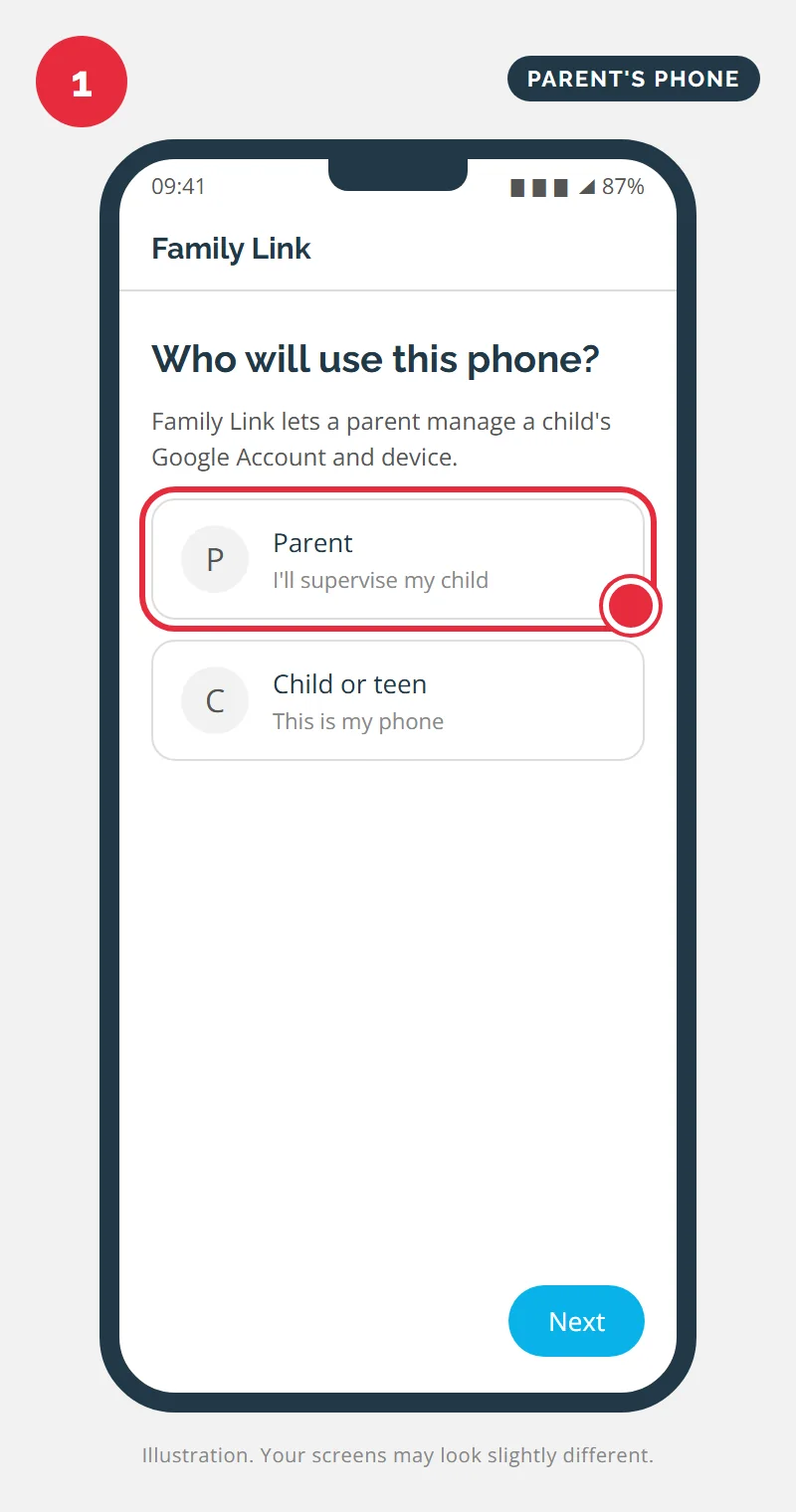
On your phone, open the Google Play Store (Android) or the App Store (iPhone), search for Google Family Link and install it. Open the app, sign in with your personal Google Account and, when asked who will use the phone, choose Parent.
Step 2: Add your child
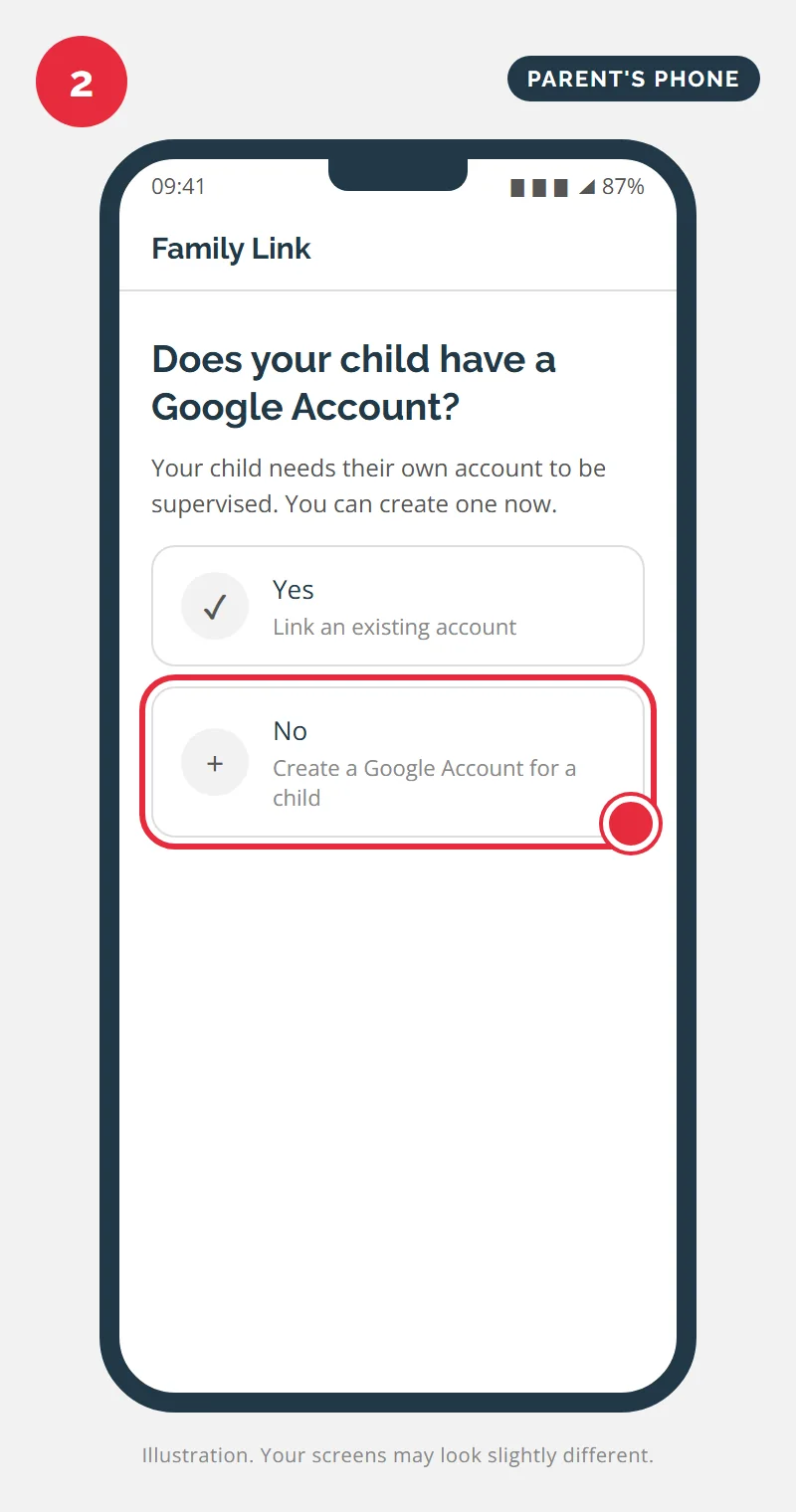
Tap the option to add a child. Family Link asks whether your child already has a Google Account. If they do not, choose No to create a Google Account for a child. If they already have one (for example from school), choose Yes and skip to Phase 2.
Step 3: Enter your child's details
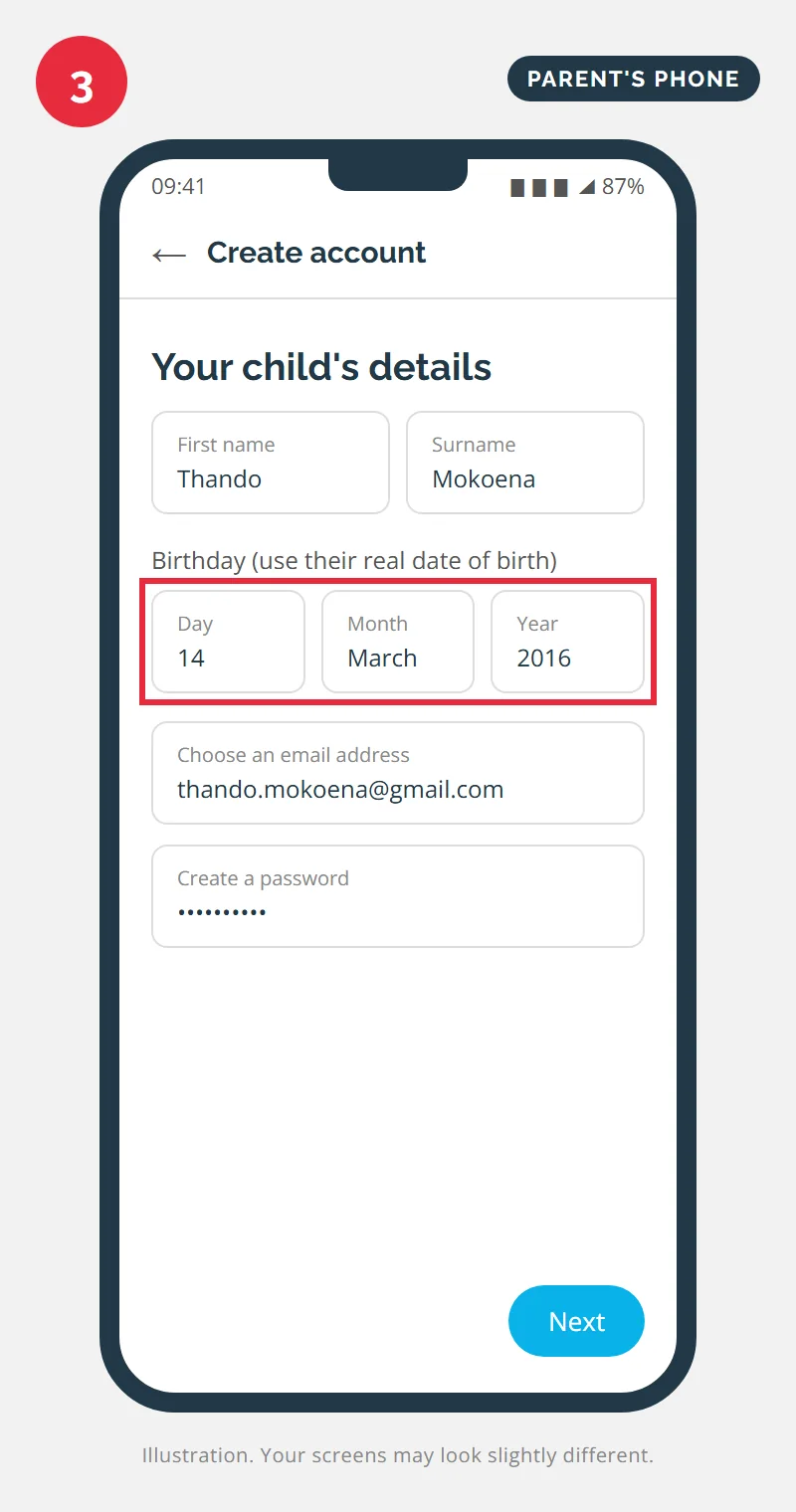
Type your child's name and real birthday, then choose their email address and a password. Write the password down somewhere safe: you will need it in Phase 2, and your child will need it if they ever sign in on another device.
Step 4: Give parental consent
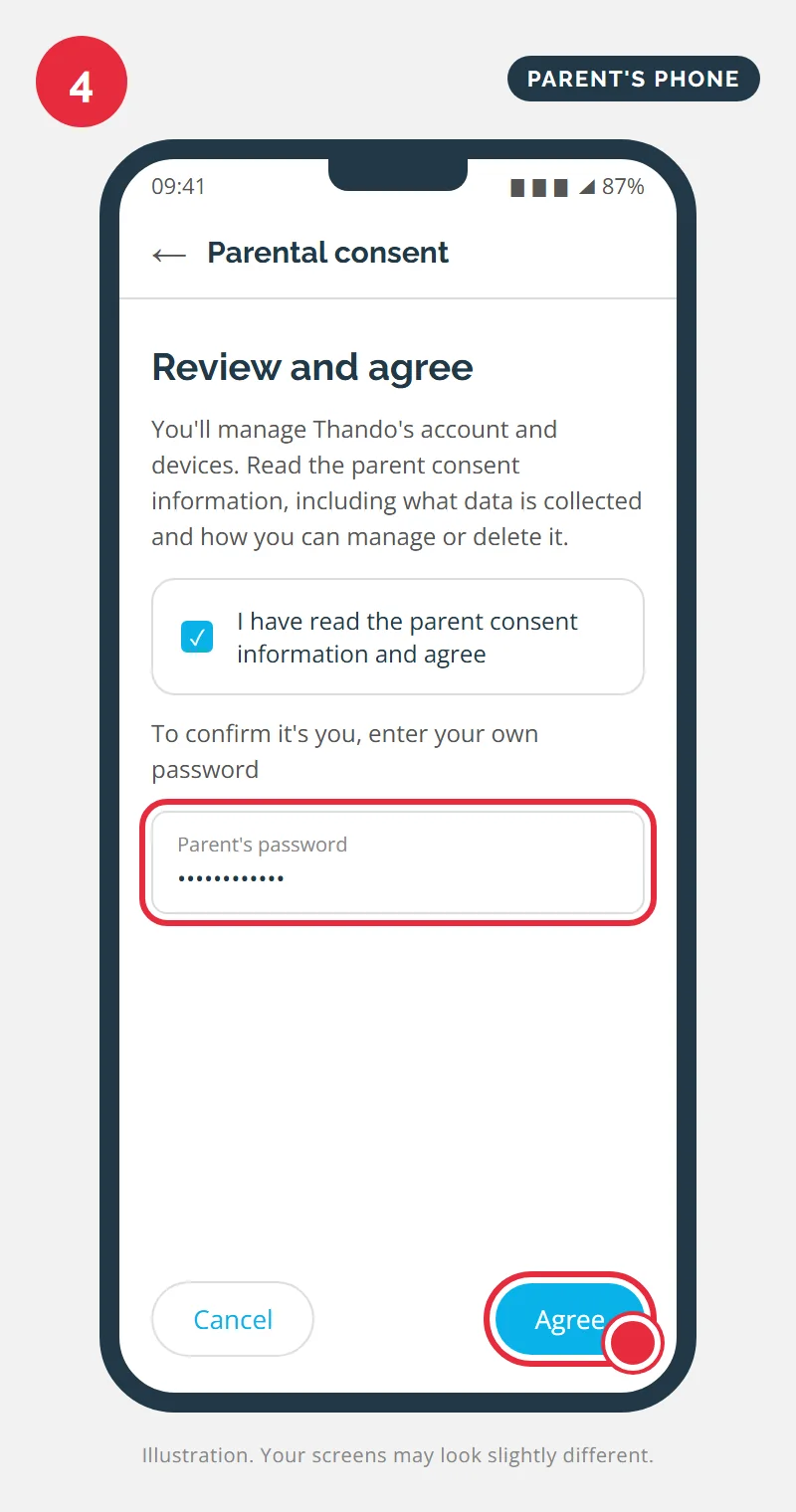
Google shows the parent consent information: what it collects about your child and how you can review or delete it. Read it, tick the box, enter your own password to prove it is you, and tap Agree. Your child's account now exists and is supervised by you.
Phase 2: Link Your Child's Phone.
Step 5: Open Parental controls on the child's phone
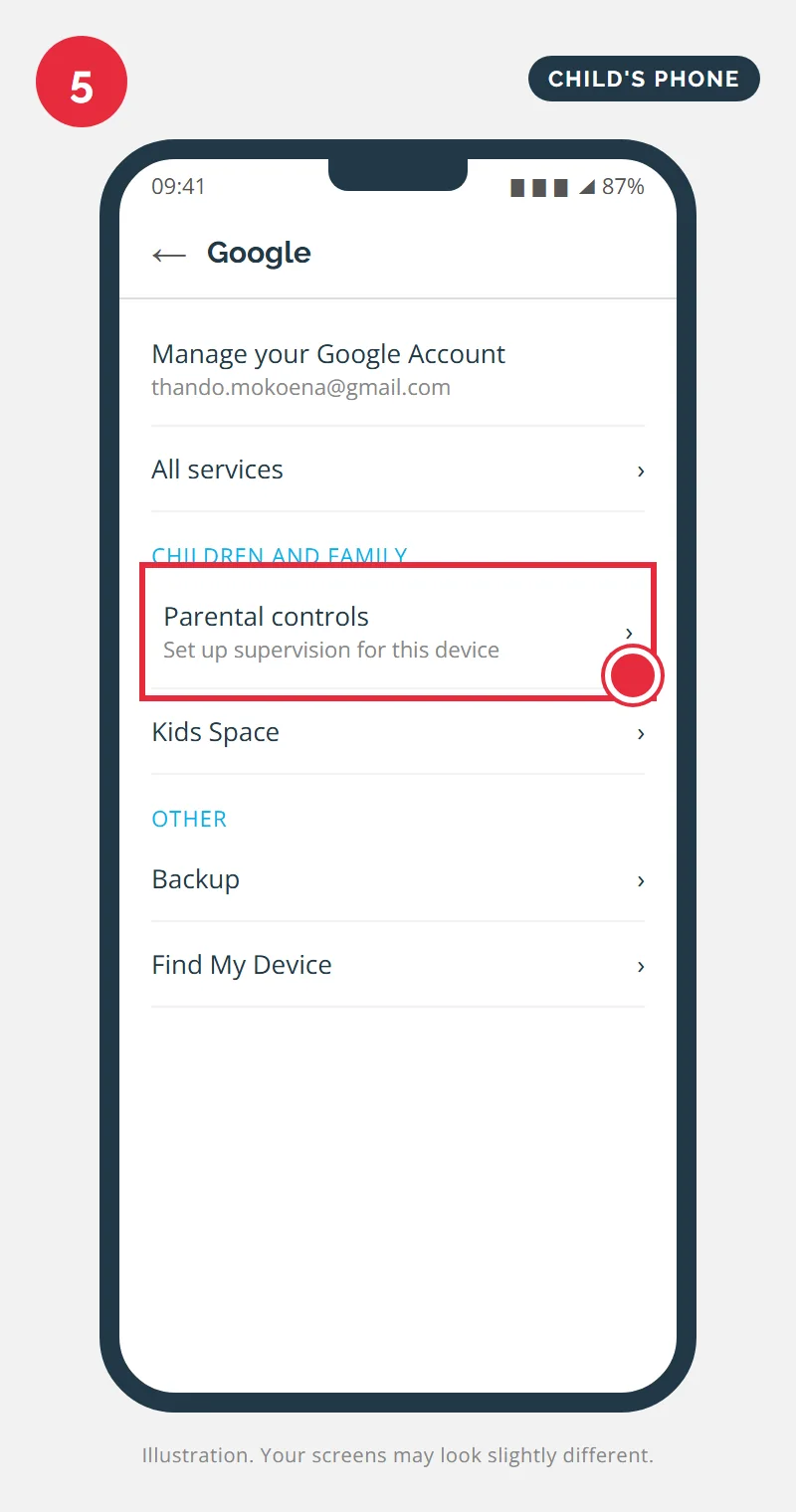
Pick up your child's phone. Open Settings, tap Google, then All services, and under Children and family tap Parental controls. On some phones the same option sits under Settings > Digital Wellbeing & parental controls.
Step 6: Choose Child or teen
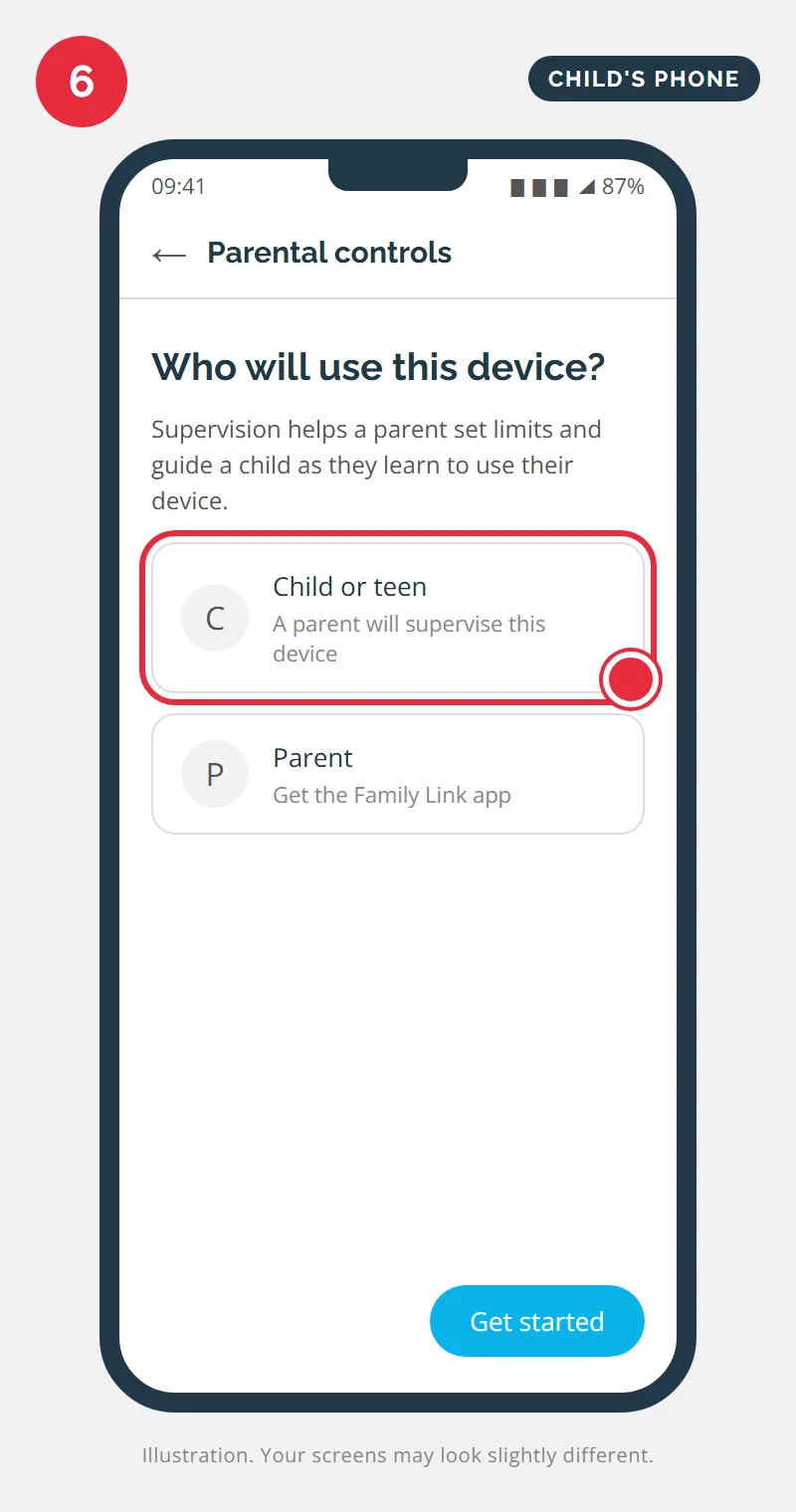
When the phone asks who will use it, choose Child or teen and tap Get started. Then sign in with your child's new Google Account email and password from Step 3.
Step 7: Sign in as the parent to approve
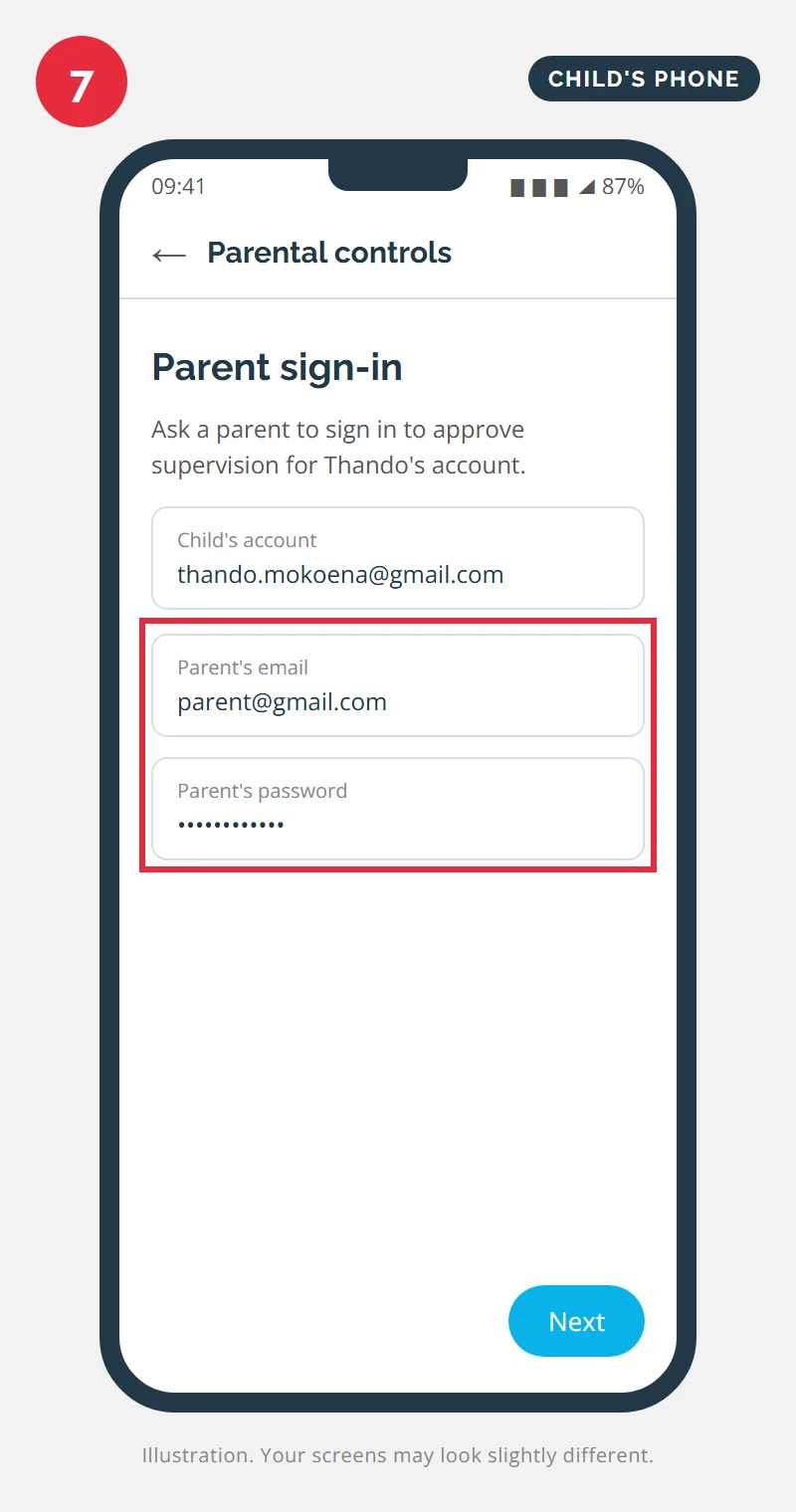
The child's phone now asks a parent to sign in. Enter your Google Account email and password. This is the moment the two accounts are linked, so make sure you choose the same account you used in Phase 1.
Step 8: Review permissions and name the device
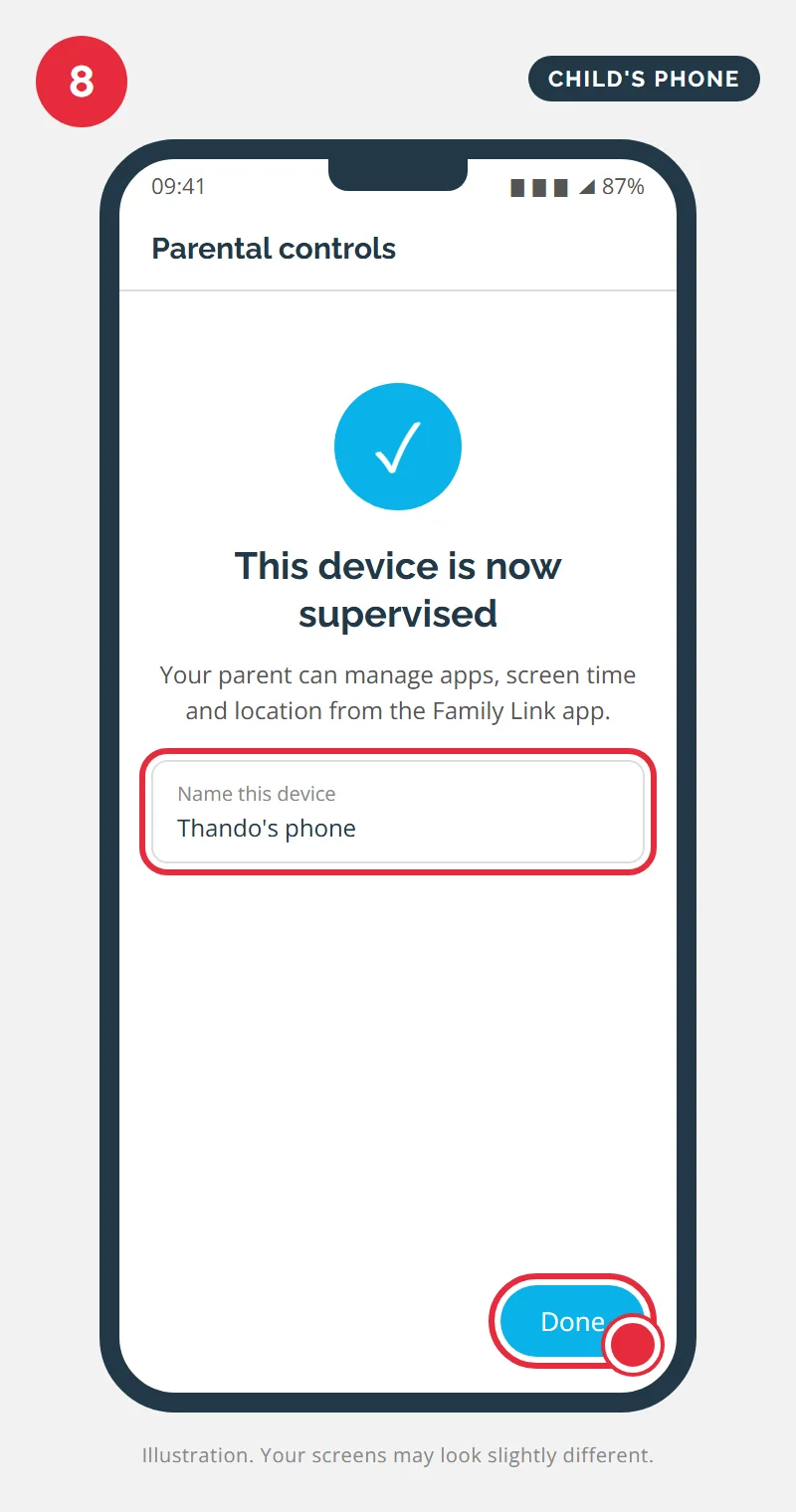
Follow the prompts: they explain what supervision means, ask you to allow the permissions Family Link needs, and let you choose which pre-installed apps stay on. Give the phone a name you will recognise, such as "Thando's phone", and tap Done. A Family Link entry now appears on the child's phone, confirming the link.
Family Link is free. There is no subscription and no app to buy, so be wary of any "parental control" app or website that asks for card details to do the same job.
Phase 3: Switch On the Controls That Matter.
Everything from here is done on your phone. Open Family Link, tap your child's name and go to the Controls tab. Start with these four settings; you can fine-tune the rest later.
Step 9: Set a daily limit
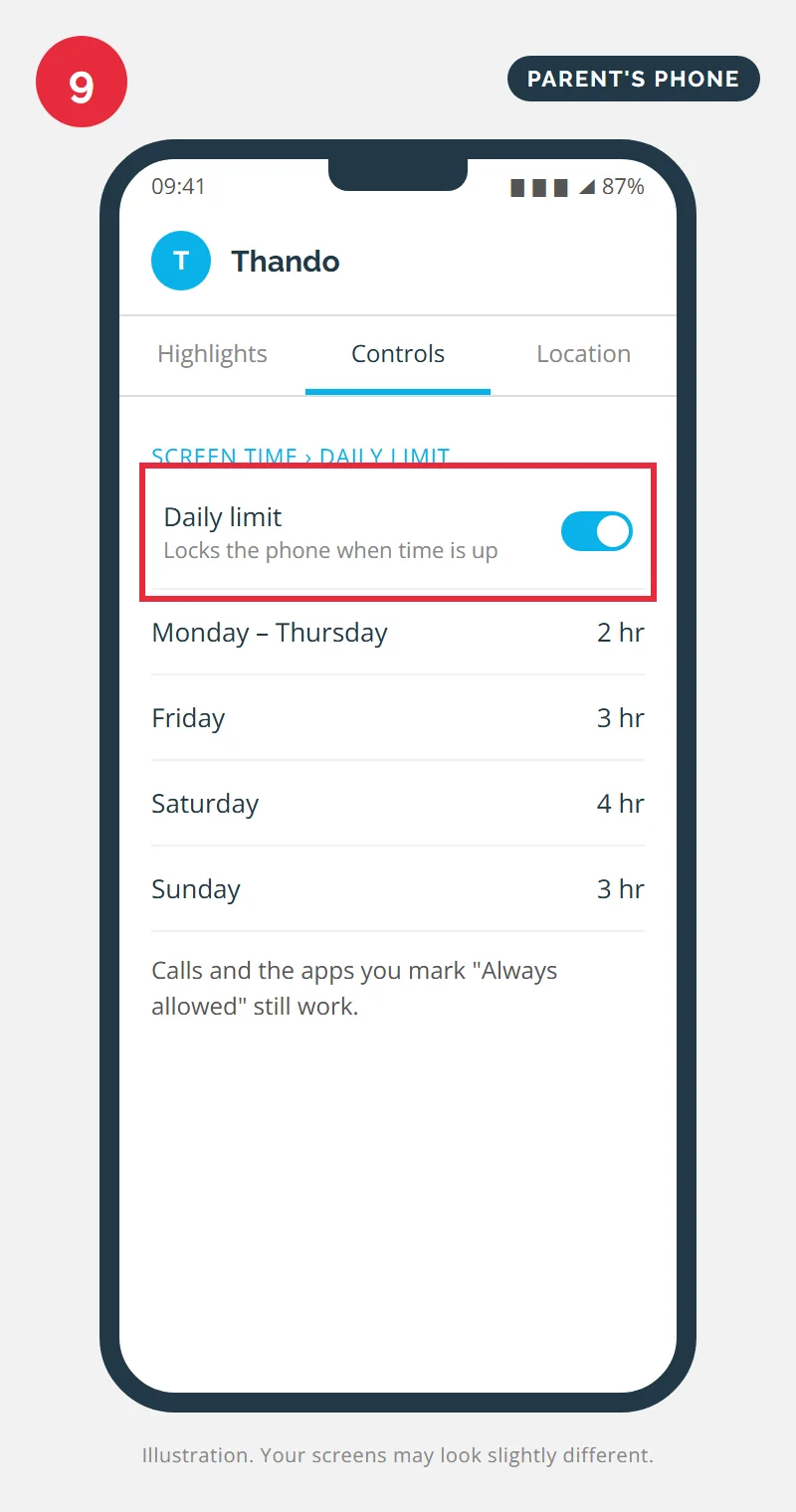
Under Screen time, open Daily limit and switch it on. You can set a different allowance for each day, for example two hours on school days and more on weekends. When time runs out the phone locks, but your child can still make calls, and any apps you mark as "Always allowed" (a school app, for instance) keep working.
Step 10: Set a bedtime
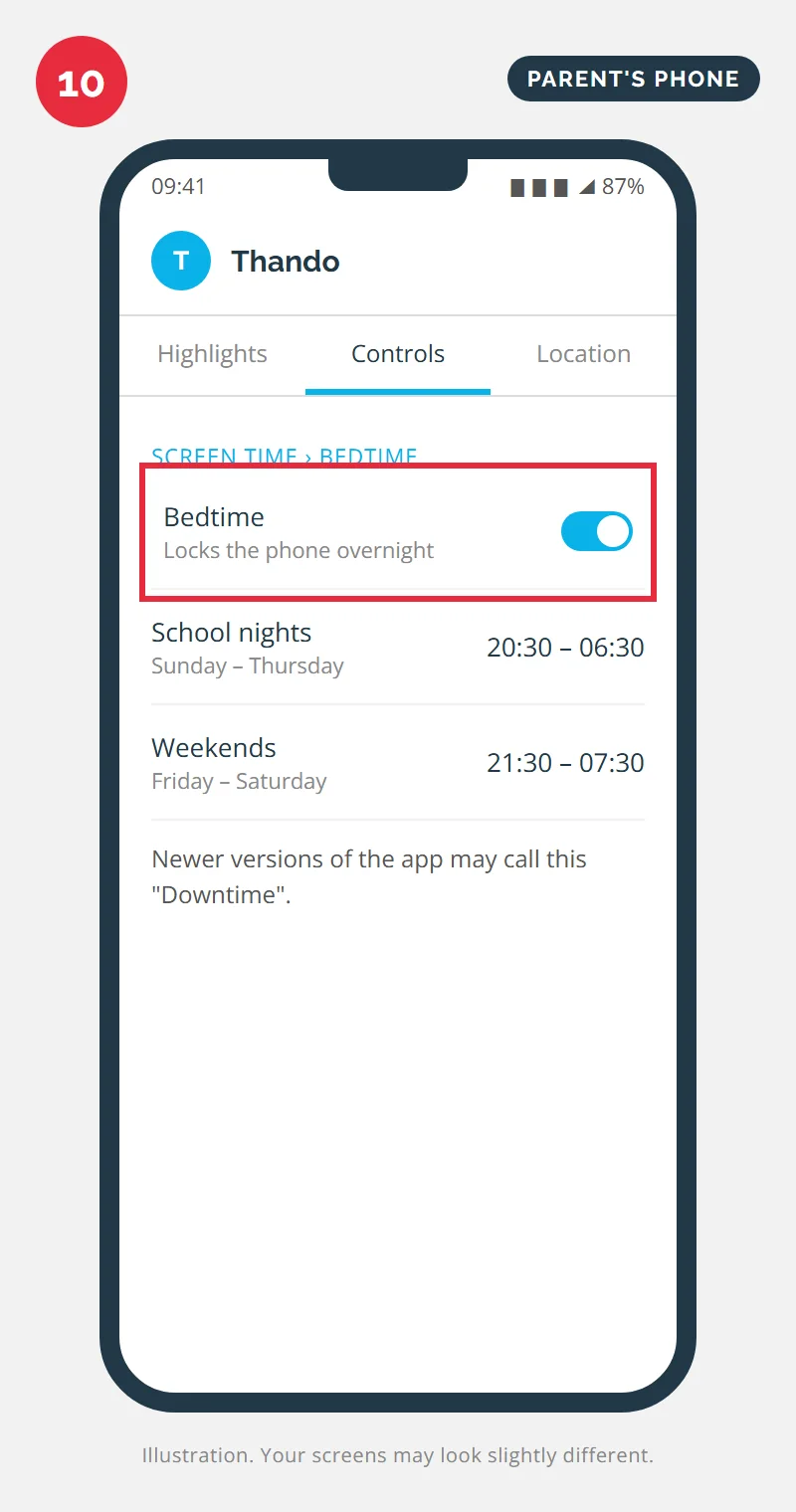
Also under Screen time, switch on Bedtime (newer versions of the app call it Downtime) and choose the hours the phone should lock overnight. Separate times for school nights and weekends make the rule easier to keep.
Step 11: Approve apps and purchases
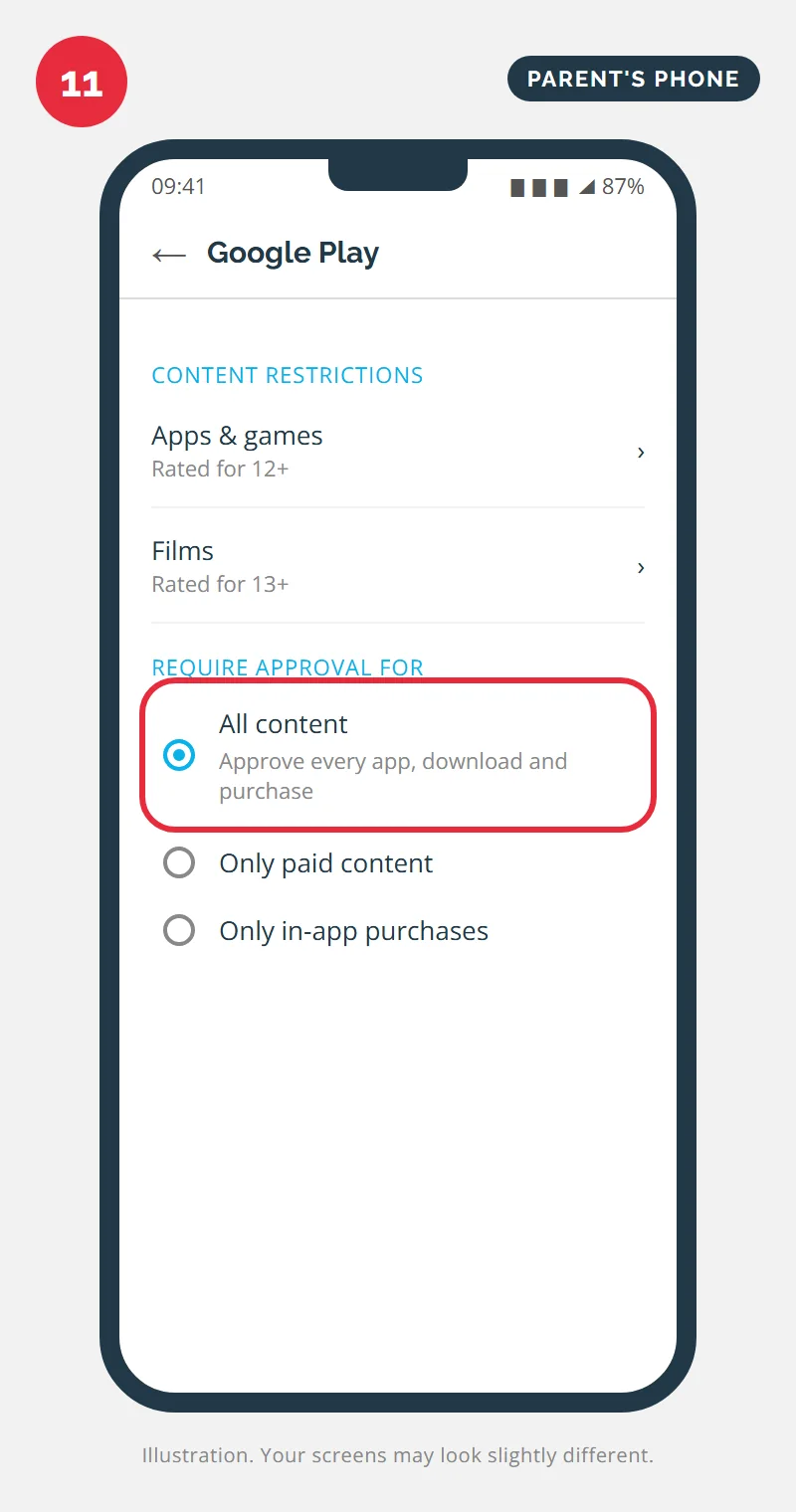
Go to Content restrictions > Google Play. Set the highest age rating you are comfortable with for apps, games and films, then under Require approval for choose All content. From now on, every app your child tries to install, free or paid, sends a request to your phone first. This is also the setting that stops surprise charges on your card.
Step 12: Turn on location
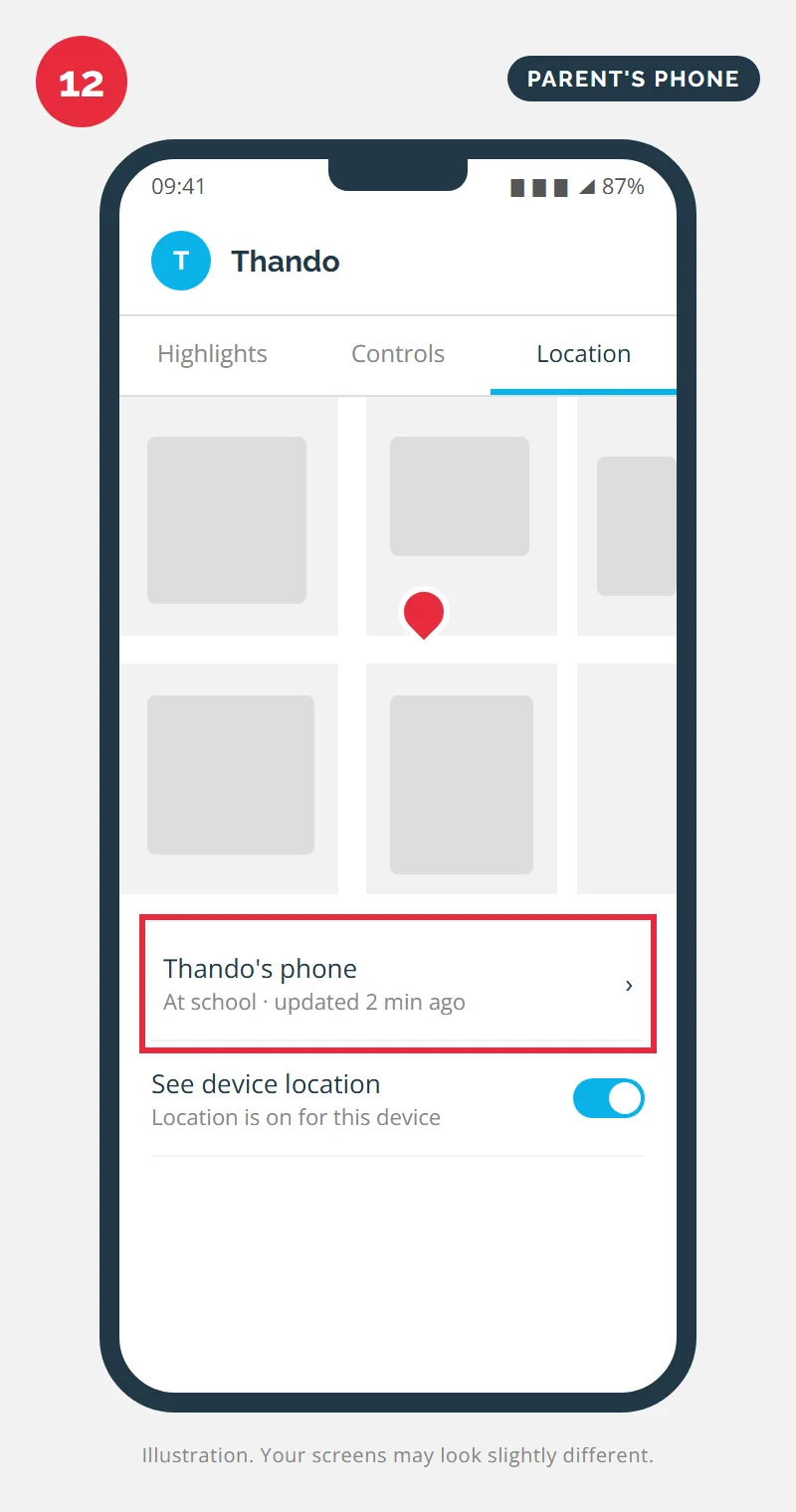
Open the Location tab on your child's profile and switch on location for their phone. You will see where the phone is, when it was last updated and its battery level, which is useful when a lift home is late or a phone goes missing.
When Setup Does Not Work.
- "You can't use this account" — another account is still on the child's phone. Back it up, remove it under Settings > Passwords & accounts, and start Phase 2 again.
- The Parental controls option is missing — update Google Play services and the phone's software, then restart. Very old or heavily customised phones may not support supervision.
- Setup stalls on "Checking info" — move both phones onto stable Wi-Fi. Mobile data that drops out mid-setup is the usual cause.
- The limits do not apply straight away — give it a few minutes and keep the child's phone online so it can receive the new settings.
Talk Before You Lock.
Family Link is a tool, not a substitute for a conversation. Children who know why a limit exists are far less likely to hunt for a way around it. Agree the rules together, explain that you will see which apps they install, and review the limits as they get older. Family Link sends you a reminder before your child turns 13, the age at which Google lets them choose to manage their own account, so that is a good point to talk again.
It also helps to treat online safety as a family skill. The same habits we teach staff in our cyber awareness training apply at home: do not share passwords, think before tapping a link in a message, and tell a grown-up when something feels wrong. Schools carry the same responsibility on their own networks; our education IT services cover content filtering and safe device setups for learners.
Your Quick Checklist.
- Phase 1 — install Family Link, choose Parent, create your child's account with their real birthday, give consent.
- Phase 2 — on the child's phone: Settings > Google > All services > Parental controls, choose Child or teen, sign in as the parent, name the device.
- Phase 3 — from your phone: daily limit, bedtime, app approval for all content, location on.
- Later — review the limits each school term, and talk about them before your child turns 13.
If you would rather someone set it up for you, or a family device is not behaving, our technicians can help remotely through AOLC Quick Support or in person through our repair and support service.
Want Help Setting It Up?
Our technicians can set up Family Link, safe browsing and backups on your family's devices, remotely or in person.
Contact Us